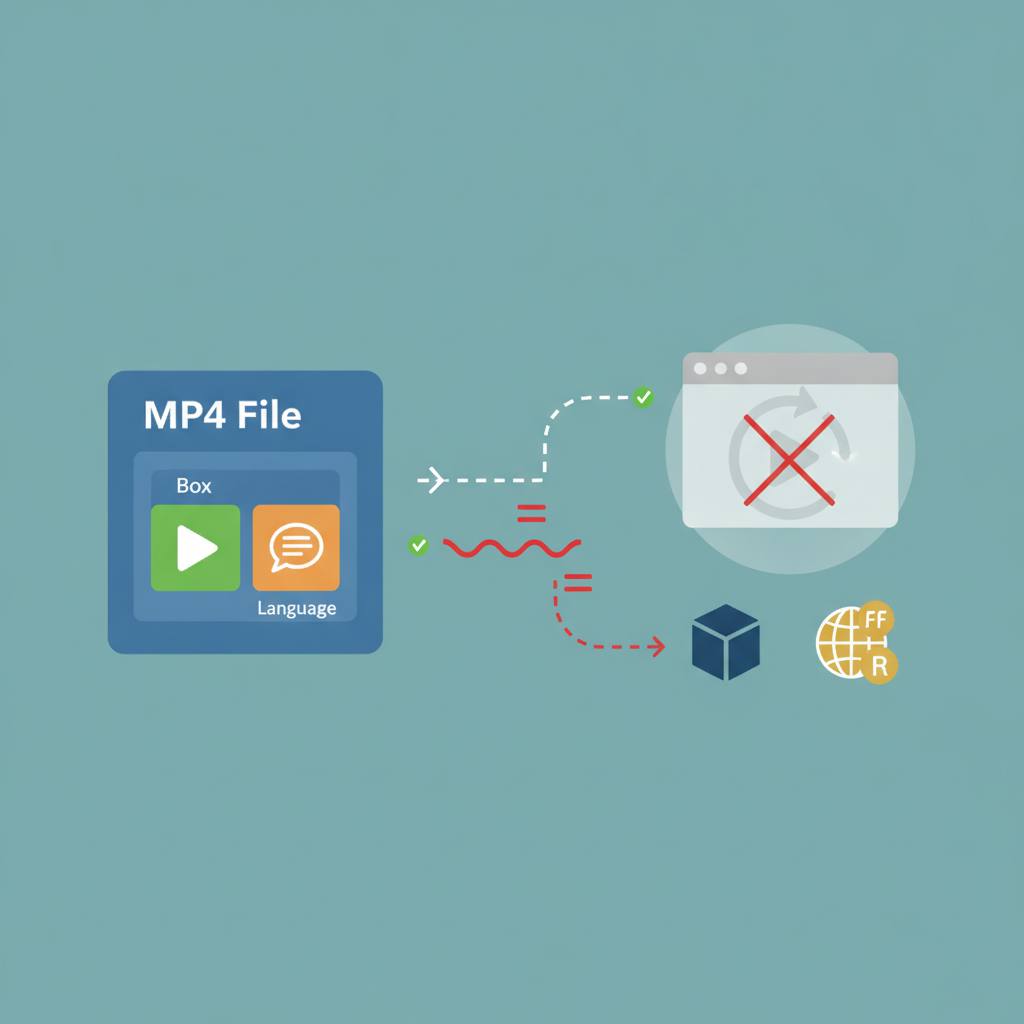
Ever experienced an MP4 video refusing to play in your browser, even though your browser claims to support MP4 files? The key lies in understanding the difference between the file's «container» (like MP4) and the «codec» used inside it, which explains why two seemingly identical files can behave differently.
We've all been there: You have an MP4 video file, your browser or device says it supports MP4, yet the video stubbornly refuses to play! It's incredibly frustrating, isn't it? Often, the reason lies in a common misunderstanding about how video files work.
Let's think of a video file like a lunchbox (the container). This lunchbox can hold different types of food (video, audio, subtitles). But what truly matters is: what kind of food is inside the box, and how was it prepared? This is where the «Codec» comes in.
The «Container» is the outer shell of the file, just like our «lunchbox». The container defines how different streams of data (video, audio, subtitles, metadata) are organized and packaged together into a single file. Popular container types include MP4, MOV, MKV, AVI, and WebM. When you see a file named video.mp4, it only tells you the type of box, not exactly what's inside.
On the other hand, the «Codec» is the method or «language» used to compress and encode the actual video or audio content *inside* the container. It's like the «recipe» for preparing the food inside the lunchbox. Common video codecs include H.264, H.265 (HEVC), VP9, and AV1. For audio, we have codecs like AAC. For the video to play, your device or browser must understand the specific codec language used to decompress both the video and audio.
Why the problem occurs: Your browser or video player might support the «lunchbox» (the MP4 container) but not understand the specific «language» or «recipe» of the video or audio inside it (the codec). This explains why one MP4 file might work on one device but not another, or why the video plays without sound, or vice-versa, or fails to play entirely.
The solution: The better question isn't: Does the browser support MP4? It is: Does the browser support the *codecs* inside this MP4 file? If you encounter this issue, look for tools that help you inspect the file to discover which video and audio codecs were used. Once you know the codecs, you can determine if your device or browser supports them, or if you might need to convert the file to a more compatible codec. Understanding the difference between a container and a codec is the key to solving most video playback problems.
Let's think of a video file like a lunchbox (the container). This lunchbox can hold different types of food (video, audio, subtitles). But what truly matters is: what kind of food is inside the box, and how was it prepared? This is where the «Codec» comes in.
The «Container» is the outer shell of the file, just like our «lunchbox». The container defines how different streams of data (video, audio, subtitles, metadata) are organized and packaged together into a single file. Popular container types include MP4, MOV, MKV, AVI, and WebM. When you see a file named video.mp4, it only tells you the type of box, not exactly what's inside.
On the other hand, the «Codec» is the method or «language» used to compress and encode the actual video or audio content *inside* the container. It's like the «recipe» for preparing the food inside the lunchbox. Common video codecs include H.264, H.265 (HEVC), VP9, and AV1. For audio, we have codecs like AAC. For the video to play, your device or browser must understand the specific codec language used to decompress both the video and audio.
Why the problem occurs: Your browser or video player might support the «lunchbox» (the MP4 container) but not understand the specific «language» or «recipe» of the video or audio inside it (the codec). This explains why one MP4 file might work on one device but not another, or why the video plays without sound, or vice-versa, or fails to play entirely.
The solution: The better question isn't: Does the browser support MP4? It is: Does the browser support the *codecs* inside this MP4 file? If you encounter this issue, look for tools that help you inspect the file to discover which video and audio codecs were used. Once you know the codecs, you can determine if your device or browser supports them, or if you might need to convert the file to a more compatible codec. Understanding the difference between a container and a codec is the key to solving most video playback problems.